
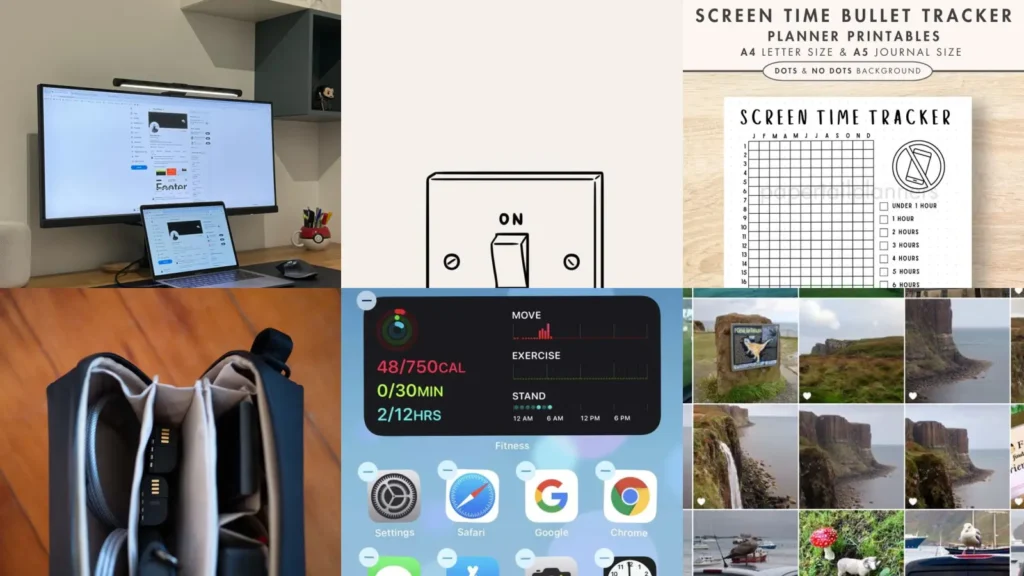

Too many apps, too many tabs, too many little red bubbles yelling at you? Same.
Trying to fix your whole digital life in one weekend usually backfires, so this list keeps things small on purpose.
I scrolled through a stack of setups and screenshots before narrowing this down. The ones that made the cut are actually doable in an afternoon, not some seven step system you’ll abandon by Thursday, lol!
This isn’t about throwing your phone in a drawer forever. It’s about making the thing you check a hundred times a day feel calmer instead of chaotic.
Each idea below is something you can start today with tools you already have. No new apps required, no subscriptions, nothing fancy.
Pick one or two that actually fit how you live instead of trying all eleven at once. Small changes stick way better than a total overhaul, trust me.
Ready to make your screen feel like a place you actually want to look at? Let’s get into it.
DIGITAL MINIMALISM TIPS
One Screen Desktop Setup

We’re starting off strong with the one screen desktop. Every icon lives on a single screen instead of scattered across five, so nothing hides in a corner you forgot about.
Group leftover files into one folder labeled misc and call it a day. It’s the fastest fix on this whole list, honestly.
- Ten minute fix, promise
- Wallpaper stays plain on purpose
- No hunting through five screens anymore
Minimalist Phone Wallpaper Ideas

these always circle back to the wallpaper because it sets the tone for everything else. A plain color or soft gradient makes icons pop less and calms the whole screen down.
Skip the busy photo collage for now. Something simple like sand, sky or a muted solid works every single time.
- The five second swap
- Any solid color from your camera roll works
- Softer tones read as calmer
Screen Time Journal Template

A screen time journal sounds intense but it’s really just a notes app entry. Jot down what time you picked up your phone and why, even just for three days.
Patterns show up fast. Mine always spikes right after lunch, which honestly explains a lot, haha!
Once you see the pattern, you can actually do something about it instead of guessing.
- Three days tells the whole story
- Notes app works fine, no fancy tracker needed
- Takes ten seconds per entry
Minimalist Tech Bag Essentials

A minimalist tech bag keeps you from carrying five chargers you never use. One cable, one charger block and maybe a small notebook for when you want to skip the screen entirely.
Coworkers always ask why my bag looks half empty. It’s not half empty, it’s exactly full enough, lol!
Home Screen Before And After

Before and after home screens are oddly satisfying to look at. The before is usually four folders deep with games nobody opens. The after has maybe eight icons total.
Phone declutter ideas rarely get more visual than this comparison, so it’s a great one to bookmark for motivation.
- Proof it actually works
- Delete first, organize second
- Fewer icons means less to scroll past
Photo Library Cleanup Method

Photo libraries balloon out of control fast. Sort by month and delete duplicates before you even think about albums.
Screenshots are the real culprit here. They pile up silently until your storage warning pops up out of nowhere.
Set a timer for ten minutes and just swipe through one month at a time. It’s weirdly relaxing once you get going.
- The storage warning fix
- Screenshots first, they hide everywhere
- Ten minutes a week keeps it under control
Folderless App Layout Idea

Who says apps need folders at all? A folderless layout just lines everything up alphabetically or by how often you use it, no categories required.
This works best if you already use search to find apps instead of hunting through screens. It’s faster than it sounds, I promise.
Color Coded App Folders

Color coded folders group apps by their icon shade instead of their function. It looks like a little rainbow and it’s honestly kind of pretty.
App organization minimal ideas do not get more visually satisfying than this one. It takes longer to set up than most tips here, so block out a real lunch break for it.
- The rainbow effect
- Sort by shade not category
- A slow build, worth an afternoon
Essential Apps Only Screen

An essential apps only screen keeps just the things you use daily. Everything else gets buried in the app library where it belongs.
Not that I’m dramatic about my home screen or anything, but this one changed how fast my phone feels, haha!
- Down to the basics
- Under ten icons total
- Everything else lives in the app library
Silent Phone Setup Guide

A silent phone setup mutes every sound except calls from a short list of people. No dings, no chimes, no random buzzing while you’re trying to focus.
It sounds drastic until you try it for a day. Then it’s hard to go back, honestly.
- Quiet by default
- Calls from favorites still ring through
- Everything else waits until you check
Do Not Disturb Schedule Ideas
Last but definitely not least, we have do not disturb schedules. Set one to run automatically overnight and another for deep focus hours during the day.
If you were hunting for email unsubscribe tips, this one is a keeper!
Notification detox tips work best when they run on autopilot instead of relying on willpower. No shame in needing the schedule to do the work for you.
- Set it once, forget it
- Runs automatically every night
- A second block for focus hours
Related stories
- 13+ Paper Free Kitchen Ideas That Save Money Fast
- 18+ Genius Paper Clutter Organization Ideas That Stick
- 12+ One Bag Living Ideas That Simplify Everything
- 20+ Game-Changing Paper Inbox System Ideas That Actually Work
- 14+ Genius Purse Cleanout Routine Ideas That Save Time
- 8+ Genius Desk Organization Ideas You NEED to Try